أصبح من الممكن اليوم إنشاء فيديو Motion Graphics كامل بالذكاء الاصطناعي دون الحاجة إلى بناء كل مشهد يدويًا داخل برامج الموشن التقليدية.
لكن للحصول على نتيجة احترافية، لا يكفي أن تضع النص وتطلب من الذكاء الاصطناعي: “حوّله إلى فيديو”.
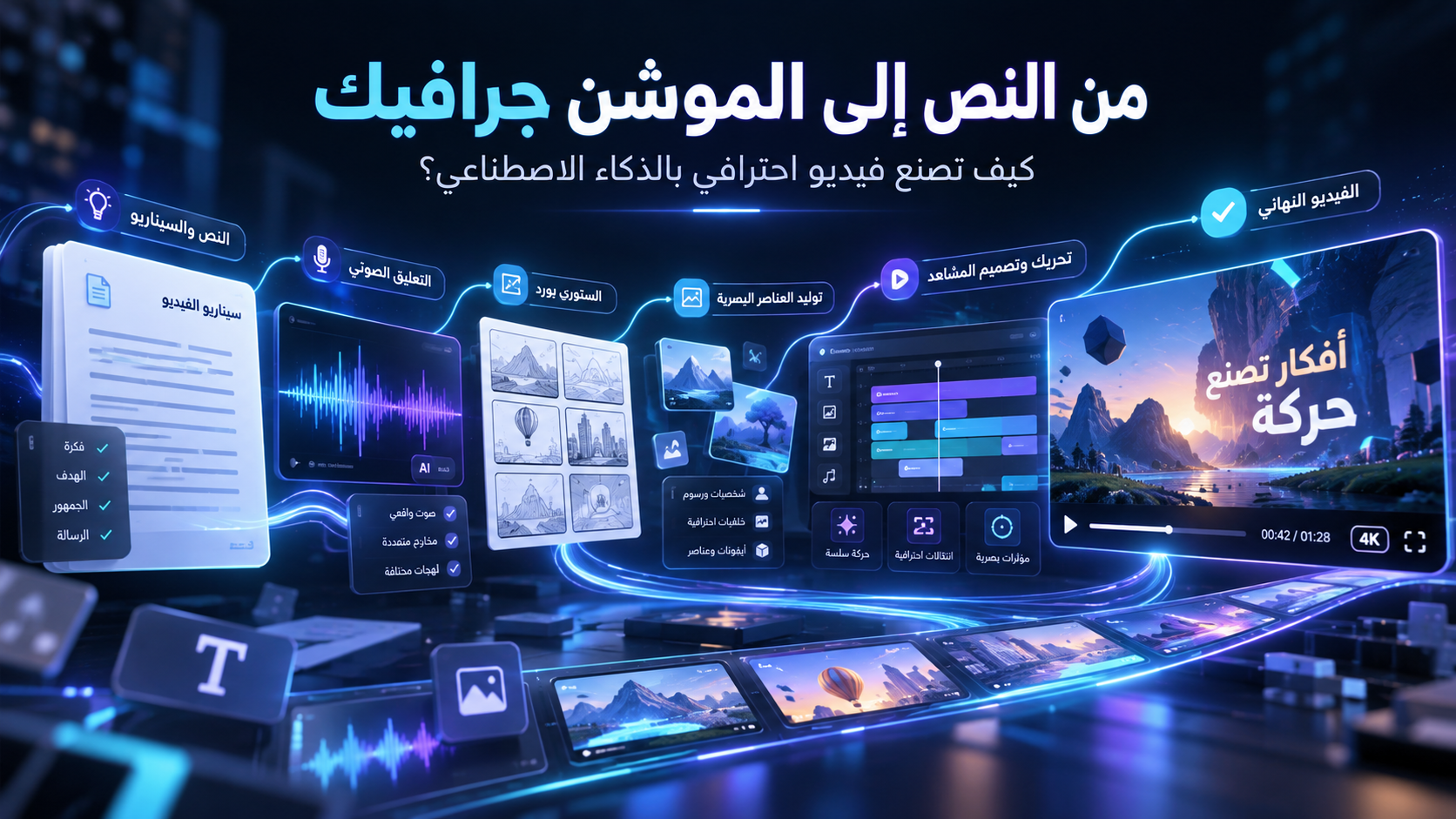
الطريقة الأفضل هي تقسيم العمل إلى مراحل واضحة:
الفكرة → السكريبت → التعليق الصوتي → أسلوب الفيديو → تقسيم المشاهد → المزامنة مع الصوت → التصدير النهائي.
وهذه هي الطريقة التي اتبعناها خطوة بخطوة.
الخطوة الأولى: تحويل الموضوع إلى قصة
ابدأ بتحديد الموضوع الذي تريد شرحه.
بدلًا من تقديم المعلومات بشكل مباشر، حاول تحويلها إلى قصة فيها:
- شخصية أو موقف.
- مشكلة.
- تطور في الأحداث.
- حل.
- فكرة أو رسالة نهائية.
على سبيل المثال، بدل أن نشرح مفهومًا تقنيًا بشكل نظري، يمكن أن نضع شخصية تواجه مشكلة يومية، ثم نوضح كيف تساعدها التقنية في حلها.
الأمر المستخدم
استخدم هذا الأمر مع أي موضوع:
تصرّف ككاتب سيناريو متخصص في الفيديوهات التعليمية وMotion Graphics.
أريد تحويل الموضوع التالي إلى قصة قصيرة جذابة تصلح لفيديو Motion Graphics مدته من 2 إلى 4 دقائق.
اجعل القصة تبدأ بـHook قوي يثير الفضول، ثم قدم شخصية أو موقفًا واضحًا، وبعد ذلك مشكلة تتطور تدريجيًا، ثم الحل، وفي النهاية خلاصة قوية تجعل المشاهد يفهم الفكرة ويتذكرها.
استخدم أسلوبًا بسيطًا وسهل الفهم، وتجنب الشرح الأكاديمي المباشر.
الموضوع:
[ضع الموضوع هنا]
الخطوة الثانية: تحويل القصة إلى سكريبت مناسب للتعليق الصوتي
بعد كتابة القصة، لا تستخدمها كما هي مباشرة.
السكريبت المخصص للصوت يجب أن يحتوي على:
- جمل قصيرة.
- وقفات طبيعية.
- انتقالات واضحة.
- كلمات سهلة في النطق.
- اختلاف في الإيقاع بين المشاهد.
ولو كان جمهورك عربيًا، يمكنك أيضًا طلب تحويله إلى لهجة مناسبة مثل العامية المصرية.
الأمر
أعد كتابة النص التالي ليصبح سكريبت تعليق صوتي طبيعي لفيديو Motion Graphics.
استخدم لغة بسيطة وطبيعية وتجنب الجمل الطويلة.
اجعل الأداء يبدو كأن شخصًا يحكي قصة للمشاهد وليس كأنه يقرأ مقالًا.
استخدم جملًا قصيرة، ووقفات مناسبة، وتصاعدًا في الإيقاع عند الأجزاء المهمة.
اللغة أو اللهجة المطلوبة:
[مثال: العامية المصرية]
النص:
[ضع النص هنا]
الخطوة الثالثة: تجهيز النص للتعليق الصوتي التعبيري
هذه من أهم الخطوات.
بدل الحصول على صوت ثابت بنفس النبرة طوال الفيديو، نجهز النص بحيث يحتوي على إشارات للأداء مثل:
- وقفة قصيرة.
- نفس.
- تنهد.
- تغيير السرعة.
- تشديد على جملة معينة.
الفكرة هنا أن التعليق الصوتي يصبح جزءًا من الإخراج، وليس مجرد صوت يُضاف بعد الانتهاء من الفيديو.
الأمر
قم بإعداد النص التالي ليكون مناسبًا لتوليد تعليق صوتي بالذكاء الاصطناعي.
اجعل الأداء طبيعيًا وقصصيًا ومعبّرًا.
أضف فقط عند الحاجة إشارات أداء مثل:
<short pause>
<breath>
<sigh>واستخدم علامات الترقيم والوقفات للتحكم في الإيقاع.
اجعل بداية النص مليئة بالفضول، ثم زد سرعة الأداء تدريجيًا في الأجزاء التي تحتوي على حركة أو ضغط، ثم اجعل الأداء أكثر وضوحًا وثقة عند تقديم الحل، وأبطئ الإيقاع قليلًا في الخاتمة.
لا تفرط في استخدام المؤثرات حتى لا يبدو الصوت مصطنعًا.
النص:
[ضع السكريبت هنا]
ويمكن إضافة وصف عام لنبرة الصوت مثل:
Natural conversational Arabic storytelling voice. Warm, expressive, intelligent and human. Avoid announcer-style delivery. Use natural pacing, subtle changes in pitch, and emotional emphasis depending on the meaning of each sentence.
الخطوة الرابعة: تحديد الهوية البصرية للفيديو
قبل صناعة المشاهد، حدد Style ثابتًا للفيديو بالكامل.
على سبيل المثال يمكن الجمع بين:
Modern Tech Explainer Motion Graphics
مع:
- 2D Vector Animation
- 3D UI Cards
- Kinetic Typography
- Infographic Animation
- Glassmorphism
- Cinematic Lighting
- Parallax
- Smooth Camera Movement
أمر عام لتحديد الستايل
Create a premium cinematic Motion Graphics explainer based on the provided script.
Visual style:
Modern explainer animation combining minimal 2D vector graphics, clean 3D UI elements, kinetic typography, infographic animation, subtle glassmorphism, cinematic lighting, depth, parallax and smooth transitions.
The video should feel modern, clean, intelligent and visually engaging without becoming cluttered.
Use strong visual hierarchy and simple visual metaphors instead of generic decorative animation.
Avoid unnecessary screenshots and stock footage.
Every visual element should help explain the narration.
Script:
[PASTE SCRIPT HERE]
الخطوة الخامسة: تحويل السكريبت إلى مشاهد
بدل أن تطلب فيديو كامل مرة واحدة، اجعل الذكاء الاصطناعي يحلل النص ويحوّله إلى Visual Beats.
كل جملة أو فكرة رئيسية تحصل على مشهد مناسب.
الأمر
Analyze the following voice-over script and divide it into visual scenes for a Motion Graphics explainer.
For every scene provide:
- Narration sentence
- Visual idea
- Main objects
- Character action if needed
- On-screen text
- Transition
- Camera movement
- Approximate duration
Use visual metaphors whenever possible.
Avoid repeating the same composition.
The visual storytelling should remain simple enough to understand immediately.
Voice-over:
[PASTE VOICE-OVER HERE]
الخطوة السادسة: جعل التعليق الصوتي هو الـMaster Timeline
هذه أهم خطوة تقريبًا في الفيديو كله.
من الأخطاء الشائعة أن يتم إنشاء Animation جميل ثم وضع الصوت فوقه.
الطريقة الصحيحة هي العكس:
الصوت هو الذي يتحكم في الأنيميشن.
أي أن كل كلمة أو فكرة مهمة في التعليق الصوتي يجب أن ينتج عنها تغيير بصري واضح.
على سبيل المثال:
إذا قال الصوت:
“وصلت رسالة جديدة”
تظهر الرسالة في نفس اللحظة.
وعندما يقول:
“تم استخراج البيانات”
تتحرك البيانات من الرسالة إلى قاعدة البيانات.
وهكذا.
الأمر الأساسي للمزامنة
The provided voice-over is the MASTER TIMELINE of the entire animation.
Analyze the complete audio and synchronize the animation sentence by sentence and phrase by phrase.
Use this rule throughout the entire video:
ONE SPOKEN IDEA = ONE CLEAR VISUAL ACTION
When an idea is mentioned, its corresponding visual action should happen at that exact moment.
Do not show important information before it is mentioned.
Do not allow the animation to run ahead of the narration.
Do not allow visual actions to lag behind the narration.
Use pauses in the voice-over for transitions, camera moves and visual emphasis.
Animation speed should respond to the narration:
Fast narration = faster motion.
Slow narration = calmer motion.
Pause = visual emphasis or transition.
The final video should feel as if the narrator’s voice is directly controlling the animation.
Voice-over / Script:
[PASTE SCRIPT OR ATTACH AUDIO HERE]
الخطوة السابعة: إضافة الحركة السينمائية
لا تجعل كل الحركة عبارة عن Zoom In وZoom Out.
حركة الكاميرا يجب أن يكون لها سبب.
يمكن مثلًا استخدام:
Slow Push In
عندما نريد جذب الانتباه إلى فكرة مهمة.
Pull Back
لكشف حجم المشكلة.
Tracking Shot
لمتابعة البيانات أثناء انتقالها بين مراحل النظام.
Macro Zoom
للدخول داخل عنصر معين.
Orbit
لكشف نظام كامل مترابط.
أمر الحركة
Use purposeful cinematic camera movements throughout the animation.
Every camera movement must support the narration.
Use:
Slow Push In for important realizations.
Pull Back to reveal scale.
Tracking Shots to follow moving information.
Macro Zoom for details.
Smooth Orbit for revealing complete systems.
Zoom Out Reveal for showing multiple processes running together.
Avoid random camera movements.
Each movement should help explain the story.
الخطوة الثامنة: استخدام Visual Metaphors
واحدة من أفضل الطرق لجعل Motion Graphics ممتعًا هي تحويل الأفكار المجردة إلى صور بسيطة.
على سبيل المثال:
التكرار يمكن تمثيله بـ:
Conveyor Belt
تتابع المهام يمكن تمثيله بـ:
Domino Effect
تدفق البيانات يمكن تمثيله بـ:
Glowing Data Pulse
اتخاذ القرار يمكن تمثيله بـ:
Path Splitting
التدخل البشري يمكن تمثيله بـ:
Human Review Checkpoint
الأمر
Identify abstract concepts inside the following script and convert them into simple visual metaphors suitable for Motion Graphics.
Prioritize metaphors that can be understood instantly without explanation.
Examples include:
Domino effect, conveyor belts, connected nodes, branching paths, checkpoints, flowing data, stacking blocks and transforming UI cards.
For each metaphor explain exactly where it should appear in the narration.
Script:
[PASTE SCRIPT HERE]
الخطوة التاسعة: النصوص المتحركة Kinetic Typography
لا تضع التعليق الصوتي كاملًا على الشاشة.
استخدم فقط الكلمات المهمة.
مثل:
COPY
PASTE
SEND
أو:
AUTOMATED
أو كلمة تمثل الفكرة الأساسية في المشهد.
ويفضل أن تظهر الكلمة في نفس لحظة نطقها.
الأمر
Extract only the most important words and phrases from the following narration for use as kinetic typography.
Do not convert the narration into subtitles.
Use only short, impactful words that reinforce the visual storytelling.
Each word should appear exactly when it is spoken.
Script:
[PASTE SCRIPT HERE]
الخطوة العاشرة: المراجعة النهائية
قبل التصدير، راجع الفيديو بثلاث طرق.
شغّله بدون صوت.
هل تستطيع فهم الفكرة من الصور؟
ثم شغّله بالصوت.
هل كل حركة متزامنة مع الكلام؟
وأخيرًا راقب سرعة الفيديو.
هل هناك مشاهد طويلة بدون حركة؟
أو مشاهد مزدحمة أكثر من اللازم؟
القاعدة التي يمكن الاعتماد عليها هي:
الصوت يحدد التوقيت، والفكرة تحدد الصورة، والحركة تربط الاثنين معًا.
الـWorkflow الكامل باختصار
يمكن تلخيص الطريقة كلها في هذا التسلسل:
Topic
↓
Story
↓
Voice-over Script
↓
Expressive TTS
↓
Visual Style
↓
Storyboard
↓
Voice-over as Master Timeline
↓
Motion + Camera
↓
Visual Metaphors
↓
Kinetic Typography
↓
Final Synchronization
↓
Export
وهكذا، بدل أن تطلب من الذكاء الاصطناعي ببساطة:
“اصنع لي فيديو من هذا النص”
أنت فعليًا تعمل مثل مخرج Motion Graphics.
تحدد القصة أولًا…
ثم الصوت…
ثم الشكل…
ثم الحركة…
ثم تجعل كل هذه العناصر تعمل معًا في توقيت واحد.
وهنا يظهر الفرق بين فيديو AI عادي…
وفيديو Motion Graphics يبدو وكأنه تم تصميمه وإخراجه خصيصًا من البداية.
شاهد فيديو الشرح العملي:
الأمر المستخدم (لعمل الموشن جرافيك في الفيديو):
Create a visually stunning cinematic motion graphics explainer about AI Automation, designed around the provided Arabic voice-over.
ABSOLUTE PRIORITY: EXACT VOICE-OVER SYNCHRONIZATION
The voice-over is the MASTER TIMELINE of the entire animation.
The animation MUST follow the narration sentence by sentence, phrase by phrase, and moment by moment.
Do NOT create a generic animation and place the voice-over on top of it.
Instead:
Listen to and analyze the complete voice-over first.
Then:
- Detect the exact start and end time of every sentence and important phrase.
- Divide the narration into visual beats.
- Assign a specific visual action to each spoken idea.
- Make each object appear, move, transform, or disappear exactly when its corresponding word or concept is mentioned.
- Finish each visual idea before the narration moves to the next concept.
- Use the natural pauses in the voice-over for transitions and camera movement.
- Never show an important concept before it is mentioned in the narration.
- Never leave an old visual on screen when the narration has already moved to a different idea, unless it is intentionally part of the same sequence.
The viewer should feel that:
the narrator is controlling the animation with their voice.
Every sentence should cause something meaningful to happen on screen.
Example of synchronization
If the narration says:
“كل ما رسالة توصل…”
At the exact moment the word “رسالة” is spoken, animate a new email entering the screen.
When the narration continues:
“سامي يفتحها…”
Animate Sami opening the email.
When the narrator says:
“ياخد اسم العميل…”
Highlight the customer’s name and visually extract it from the email.
When the narrator says:
“يفتح Excel…”
Transition directly into a spreadsheet/database interface.
When the narrator says:
“يسجل البيانات…”
Animate the extracted information entering the appropriate fields.
The animation must therefore visually complete the exact action being described at that exact point in the narration.
VISUAL STYLE
Use:
Modern Tech Explainer Motion Graphics
combining:
- Minimal 2D vector animation
- Clean 3D UI cards
- Floating interface elements
- Kinetic typography
- Smooth infographic animation
- Isometric workflow diagrams
- Subtle glassmorphism
- Cinematic lighting
- Depth and parallax
- Dynamic camera movements
- Seamless morph transitions
Overall feeling:
Smart, futuristic, premium, clean, fast-paced and highly engaging.
Avoid visual clutter.
COLOR PALETTE
Use:
- Deep Navy / Near Black backgrounds
- Electric Cyan
- Soft Blue
- Violet / Purple accents
- White typography
- Warm Yellow for important information
- Green for completed automated tasks
- Red only for warnings or human intervention
Avoid excessive neon colors.
MAIN CHARACTER — SAMI
Use a simple stylized character representing Sami, a small business owner.
At the beginning of the story, show him becoming increasingly overwhelmed by repetitive work.
Around him gradually appear:
- Emails
- Notifications
- Excel sheets
- Customer messages
- Reminder icons
- Browser windows
- Repetitive tasks
IMPORTANT:
Do not show all these elements immediately.
Each one should appear only when the voice-over mentions it.
The environment should gradually become more chaotic in exact synchronization with the narration.
REPETITIVE TASK SEQUENCE
When the narrator says words such as:
Copy
Show Sami copying information.
Then:
Paste
Animate the information moving into another application.
Then:
Send
Show a message being sent.
Then:
Update
Show a database being updated.
Then:
Follow-up
Show a reminder or follow-up message appearing.
When the narrator repeats the idea of:
Copy and Paste again
Make the sequence loop faster.
Gradually multiply the windows around Sami.
The animation speed should increase with the narrator’s rhythm to visually communicate frustration and repetition.
THE TURNING POINT
When the narration introduces:
AI Automation
create a major visual transition.
The chaotic interfaces around Sami should freeze momentarily.
Then smoothly reorganize themselves into a clean connected workflow.
Use a cinematic:
Camera Pull Back → Interface Transformation → Slow Push In
Reveal:
AI AUTOMATION
using bold kinetic typography.
This moment should feel like the major transformation point of the story.
VISUALIZING AI AUTOMATION
Do NOT represent AI as a humanoid robot.
Represent AI as an intelligent digital system made from:
- Connected nodes
- Smart UI cards
- Data streams
- Workflow lines
- Logic blocks
- Subtle glowing connections
Visualize:
New Email
↓
AI Reads
↓
Extract Data
↓
Classify Customer
↓
Update Database
↓
Generate Reply
↓
Send Message
However:
DO NOT show the complete workflow immediately.
Build it step-by-step according to the narration.
When the narrator says:
“أول ما رسالة جديدة تيجي…”
activate:
NEW EMAIL
When the narrator says:
“الذكاء الاصطناعي يقراها…”
activate:
AI READS
When they say:
“يفهم العميل عايز إيه…”
animate AI classification.
When they say:
“ويستخرج اسمه وبياناته…”
visually extract the data from the email.
Each spoken action should activate the next node.
DATA FLOW
Use a glowing data pulse traveling through the workflow.
The pulse should physically move from one step to the next at the same speed as the narration.
For example:
Email arrives.
Pulse travels.
AI analyzes.
Pulse continues.
Data is extracted.
Database updates.
AI generates response.
Message leaves the system.
The camera can follow this pulse using a:
Smooth Tracking Shot
so the audience feels as if they are traveling inside the Automation.
SECOND AUTOMATION EXAMPLE
When the voice-over explains what happens after someone buys a product, visually create a second workflow.
Build it progressively:
Purchase
↓
Save Customer Data
↓
Thank You Message
↓
Wait 3 Days
↓
Ask About Experience
Then create a visual decision split:
Customer Happy
→ Ask for Review
Customer Has Problem
→ Send to Sami
The decision branches should appear exactly as the narration explains each possibility.
VISUAL METAPHORS
Use strong visual metaphors only when their corresponding idea appears in the voice-over.
Repetitive Tasks
Show Sami repeatedly moving identical digital blocks manually.
Automation
Transform those same blocks into a conveyor belt that begins moving automatically.
Workflow
Use connected glowing nodes.
Decision Making
Split one workflow line into two branches.
Human Intervention
When narration explains that humans are still needed for important decisions:
Stop the workflow at a checkpoint.
Display:
HUMAN REVIEW
A task card floats toward Sami.
He reviews it.
Clicks:
APPROVE
Then the workflow continues.
DOMINO SEQUENCE
When the narration compares Automation to domino pieces:
Immediately transition into a digital domino metaphor.
Show one glowing tile falling.
It hits the next tile.
Then:
Email → Data → AI → Database → Message → Customer
activate one after another.
Camera:
Low Tracking Shot following the domino chain.
The visual should end exactly when the narrator finishes the domino comparison.
Then smoothly morph back into the digital workflow.
BEFORE VS AFTER
Create a strong narrative contrast.
BEFORE
As the narrator describes Sami’s old workflow:
- Chaotic workspace
- Too many notifications
- Multiple windows
- Manual copying
- Repetitive tasks
- Faster movement
- Increasing visual pressure
AFTER
As the narration explains the benefits of Automation:
Gradually transform the scene into:
- Clean workspace
- Minimal dashboard
- Automatic workflows
- Calm movement
- Fewer notifications
- Sami focusing on meaningful work
The visual transformation must happen progressively along with the narration.
KINETIC TYPOGRAPHY
Important spoken words can briefly become visual elements.
Examples:
COPY
PASTE
SEND
UPDATE
FOLLOW-UP
Synchronize the appearance of each word precisely with its pronunciation.
Later transform them into:
AUTOMATED ✓
Also emphasize key concepts:
AI AUTOMATION
WORKFLOW
TRIGGER
ACTION
HUMAN REVIEW
Keep text minimal.
Never display long subtitles as decorative elements.
CAMERA MOVEMENT
Camera movement must also react to the narration.
Use:
Slow Push In
for important realizations.
Pull Back
when revealing the scale of repetitive work.
Tracking Shot
when following data through a workflow.
Macro Zoom
when focusing on a specific email or information field.
Smooth Orbit
when revealing the full Automation ecosystem.
Zoom Out Reveal
when showing that multiple processes are running simultaneously.
Do not use random cinematic movement.
Every camera movement must support the exact sentence being spoken.
PACING RULE
Avoid arbitrary scene durations.
Scene length MUST be determined by the voice-over.
Short sentence = short visual beat.
Long explanation = longer visual sequence.
Fast narration = faster animation.
Slower narration = calmer movement.
Pause in narration = opportunity for visual emphasis or transition.
Every 2–5 seconds, something visually meaningful should change, provided that it remains synchronized with the narration.
FINAL DASHBOARD SEQUENCE
Near the end, when the narration explains how Sami’s morning changed:
Transition to a clean dashboard.
Do NOT display the numbers early.
When the narrator mentions completed tasks, animate:
47 Tasks Automated ✓
Then, when the narration mentions the remaining tasks:
Animate:
3 Tasks Need Your Review
Highlight the number 3.
Three task cards move toward Sami.
Everything else continues running automatically in the background.
FINAL QUESTION
When the narration asks:
“ليه أعمل المهمة دي بإيدي أصلًا… لو ممكن النظام يعملها عني؟”
Remove most visual elements.
Slow down the animation.
Place Sami in the center.
Behind him, the automation continues working silently.
Reveal the question phrase-by-phrase in synchronization with the voice.
Then finish with:
AI AUTOMATION
followed by:
خلي الشغل المتكرر…
يشتغل بدل منك.
Time the final reveal precisely with the final spoken words.
End with a subtle cinematic fade.
CRITICAL SYNC RULE
For the entire video use this principle:
ONE SPOKEN IDEA = ONE CLEAR VISUAL ACTION
Do not allow the animation to become ahead of the narration.
Do not allow it to lag behind the narration.
Do not randomly change scenes every few seconds.
Do not create decorative motion unrelated to the spoken content.
Do not show future information before it is spoken.
Treat every sentence in the voice-over as an animation cue.
Analyze:
Word → Meaning → Visual Action → Exact Timing
The final result should feel like the visuals and narration were designed together from the beginning, rather than an animation being added later to an audio track.
FINAL QUALITY TARGET
The audience should be able to understand most of the story even with the sound muted.
At the same time, when the sound is enabled, every movement should feel perfectly timed to the narrator’s words.
Create the feeling that:
the voice is literally driving the animation.